
Essential Tips & Tricks for Your Tournament Schedule
Tip #1 - Use full-screen mode
To ensure your tournament schedule is displayed optimally, we recommend using full-screen mode on the day of the tournament. You can easily enable this in the tournament schedule by clicking the "Full-Screen Mode" button.
This displays the full-size tournament schedule without any distracting elements, making it ideal for keeping your audience informed via a screen or monitor.
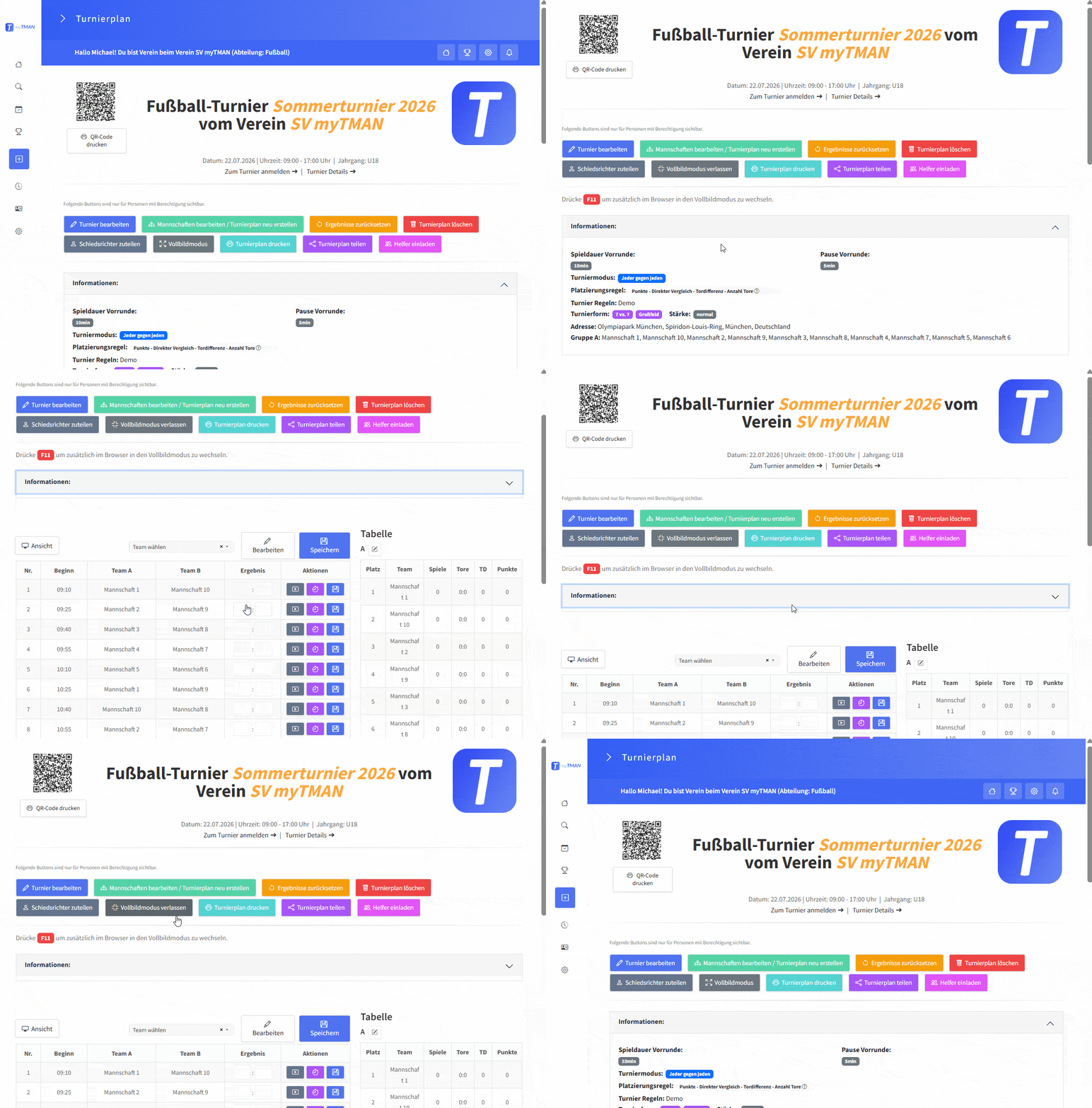
Click on the video to maximize it.
Tip #2 - Print out the QR code and tournament schedule
Print out the tournament schedule and the QR code, and post them in your gym and around the tournament venue so that spectators can follow the results live on their phones.
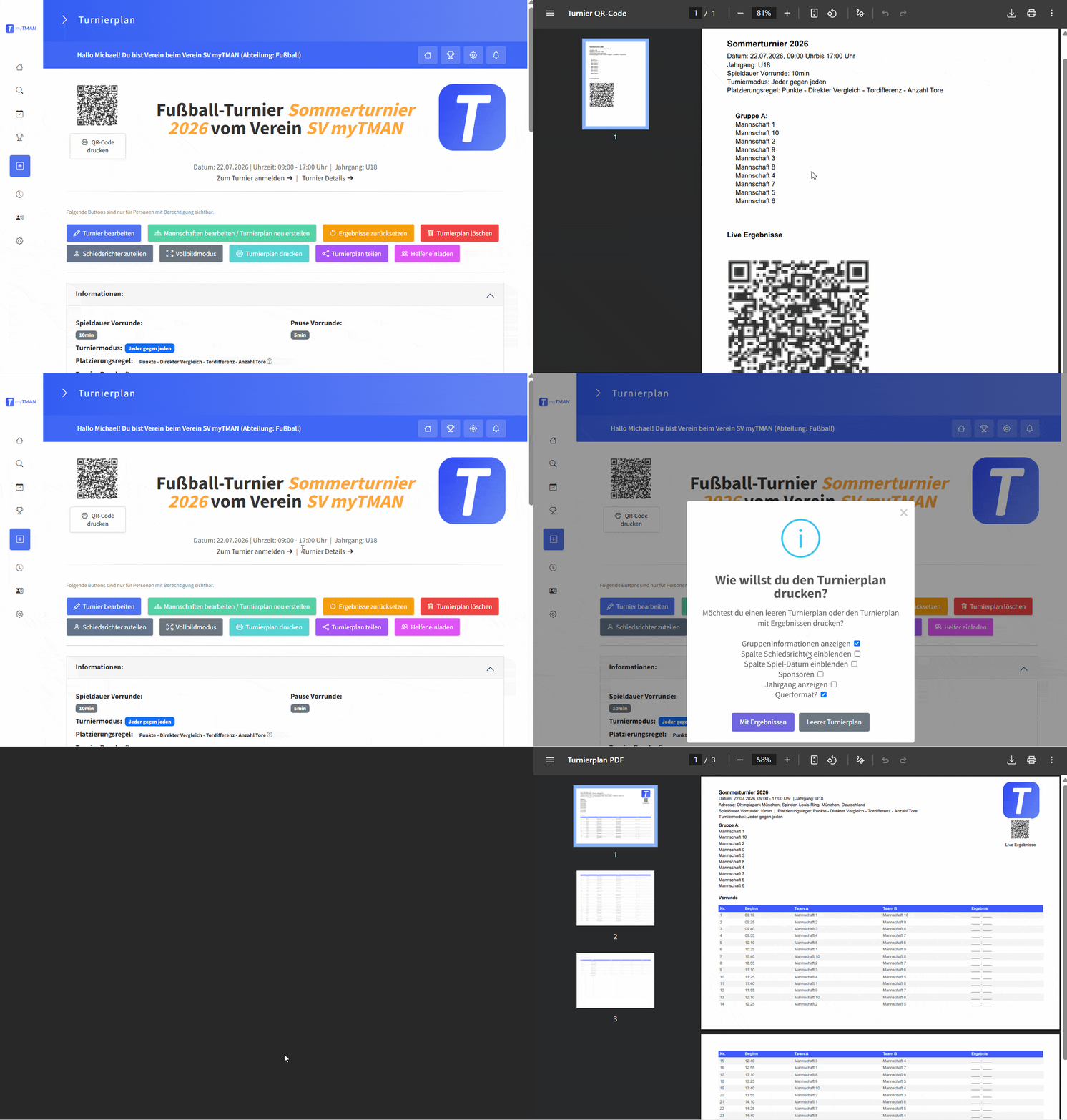
Click on the video to maximize it.
# Tip 3 - Use the game timer
Use the game timer in combination with an external screen or projector to display the live score, including the elapsed time and goal scorers, to your viewers.
To start the game timer, just click the purple button with the stopwatch icon next to a game.
Alternatively, you can simply use the "Play" button to mark one or more games as "active." This lets participants and spectators know which games are currently in progress.
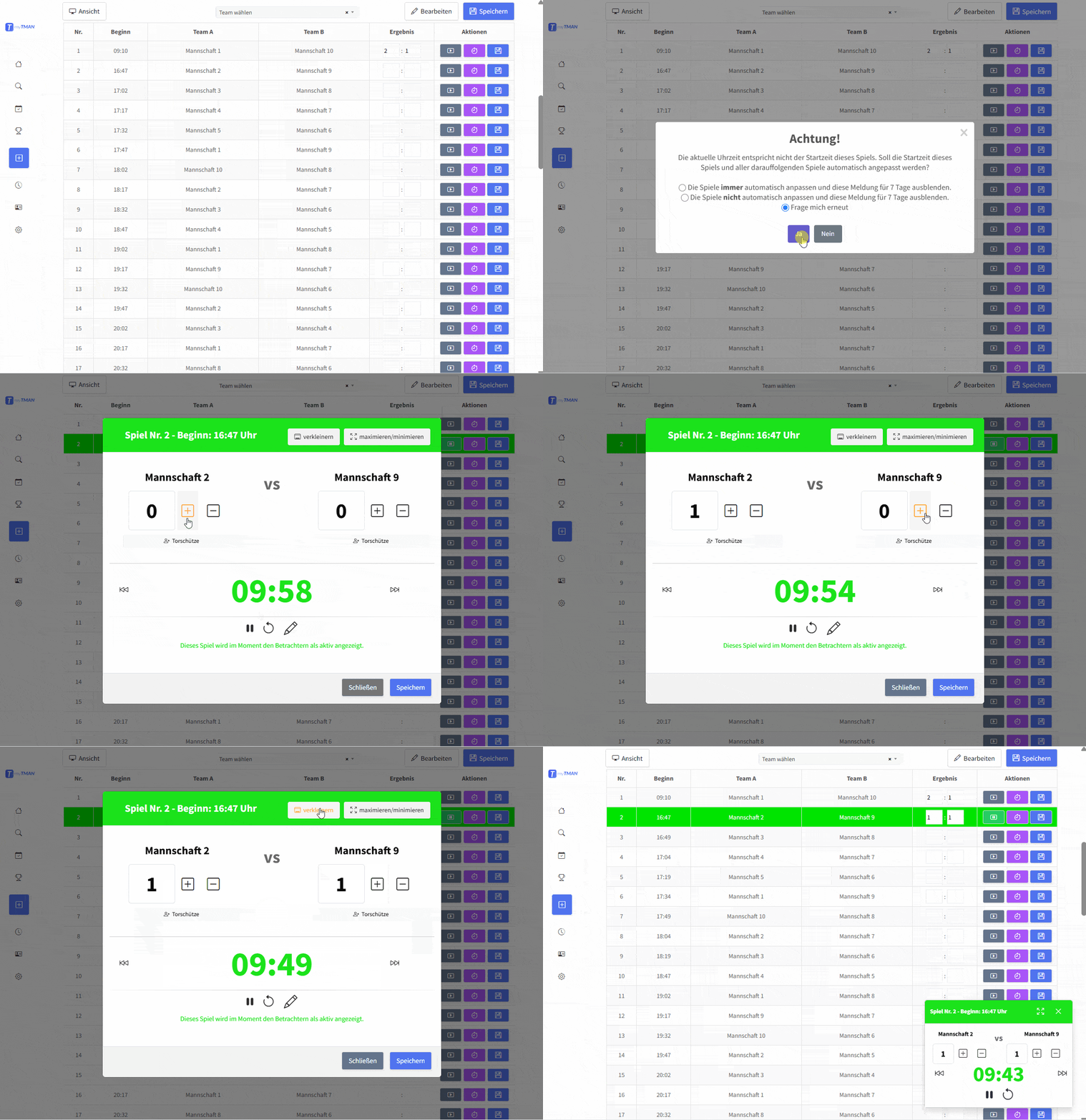
Click on the video to maximize it.
#4 - Assign referees
Don't forget to assign the referees before the tournament so that it's clear on the day of the tournament who is refereeing which game and when.
Tip #5 - Share the helper link
Avoid stress by getting some help. Create a shared link (with a password) and send it to everyone who needs to report and enter results.
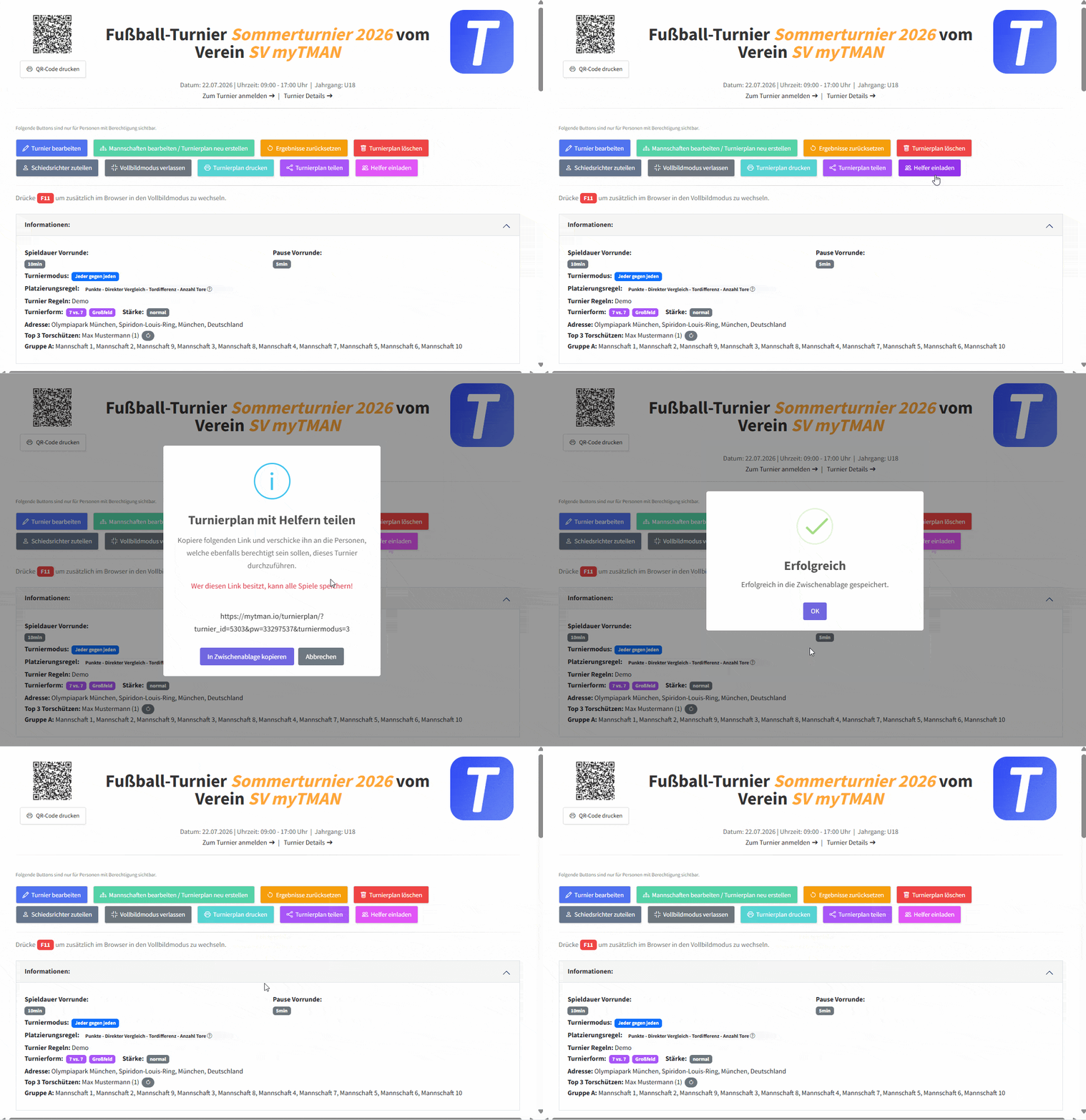
Click on the video to maximize it.
Tip #6 - Share the tournament schedule
Before the day of the tournament, share the link to your tournament with parents and other interested parties so they can follow the tournament results from home. To do this, simply click "Share Tournament Schedule" in the tournament schedule and choose how you'd like to share it.
With just one click, you can share the map via email, generate a link, or create an iframe that lets you embed the map on your own website.
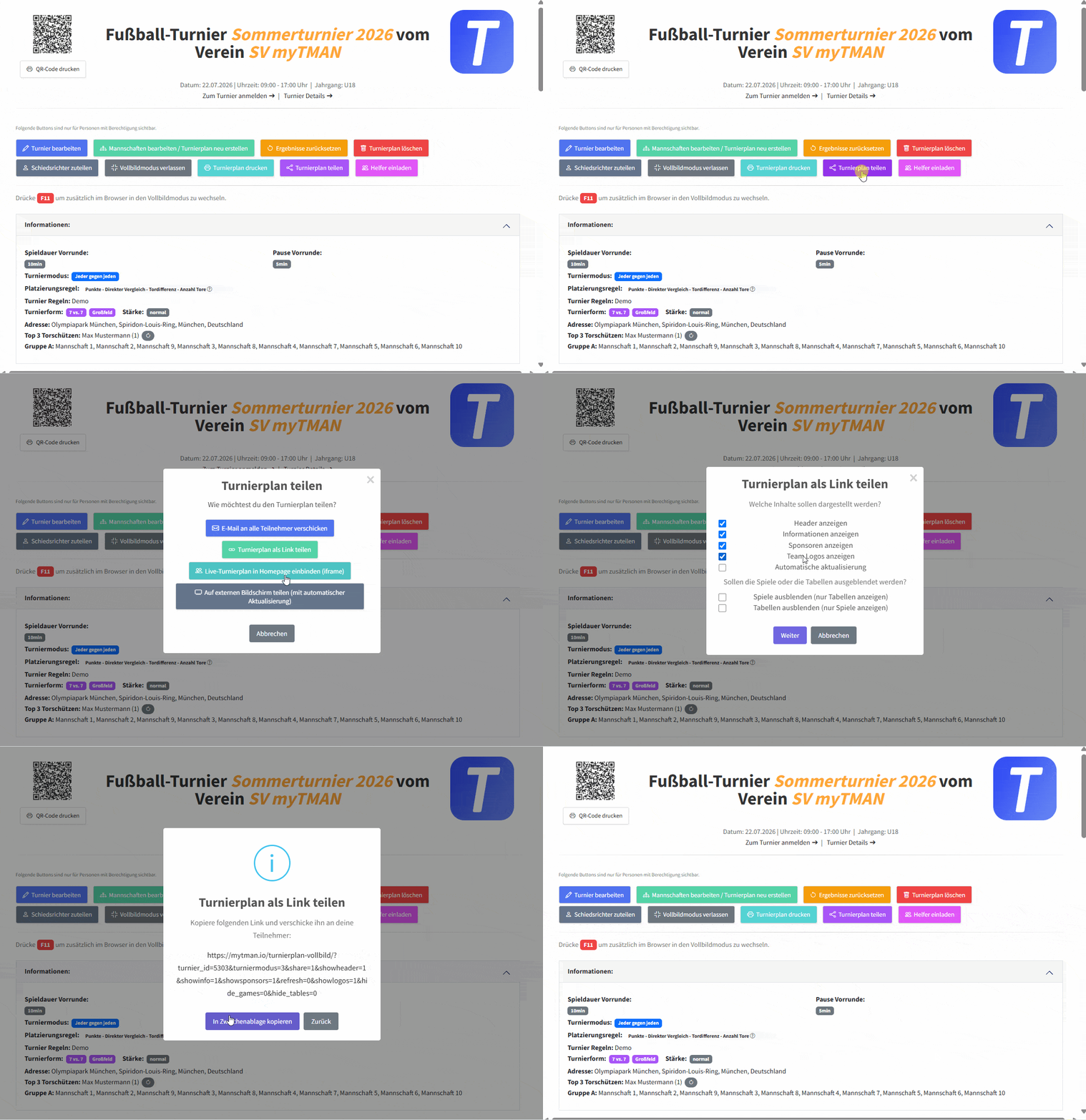
Click on the video to maximize it.
Do you have any questions?
Do you have any questions or comments? Then send us a message, leave a comment on this guide, or check out the FAQs.